Frequency
Frequency
Enter the Frequency Directly
Enter a frequency in the large field below the S-meter, then select kHz or MHz. You can also press Enter after typing the value. The 9/10 button selects the 9 kHz or 10 kHz tuning-step family.
Selecting Frequencies on the Spectrum
You can tune the receiver by:
- Clicking the waterfall or frequency scale.
- Dragging the waterfall horizontally.
- Dragging the center of the red passband.
- Using the mouse wheel when it is configured to tune.
- Selecting a station label, memory, band, or extension-provided frequency.
Right-click the waterfall to switch the mouse wheel between tunes and zooms. The menu shows the behavior that will be selected if clicked.
Touch Gestures
- Tap to tune.
- Touch and hold for about three-quarters of a second, then drag to move the waterfall.
- Move two fingers horizontally together to tune.
- Pinch with two fingers to zoom.
Zooming
Use the zoom in/out and maximum zoom buttons below the waterfall, the zoom-to-band button, or a mouse wheel configured for zoom. Trackpad pinch gestures zoom to the passband. Touchscreens use the two-finger pinch gesture.
Adjusting the Passband
The red passband shows the filter sent to the demodulator. Drag its center to retune, or drag either edge to change the low or high cutoff. The Audio tab also provides PB low, PB high, PB center, and PB width, plus PB default to restore the selected mode's standard filter.
When the spectrum display is in RF mode, the active filter is drawn as a semi-transparent passband overlay. Symmetric and asymmetric filters are both represented.
Locking the Frequency and the Right-Click Menu
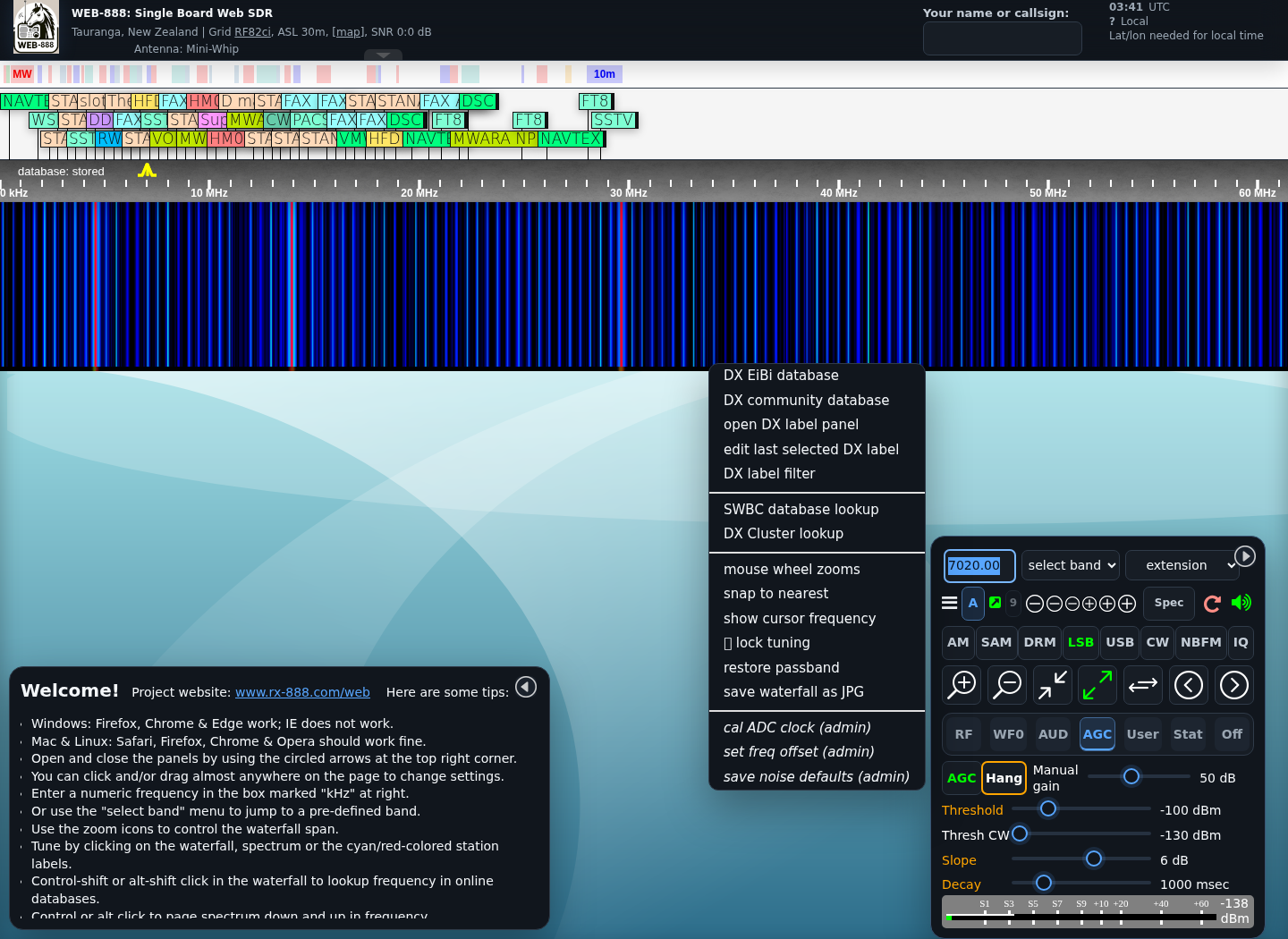
Right-click the waterfall on a computer to open the menu. On a touchscreen, use the waterfall's touch menu gesture. The menu includes:
- Mouse-wheel tune/zoom selection.
- lock tuning, which prevents accidental frequency changes.
- Passband and label-related actions when applicable.
- cal ADC clock (admin), available to an authenticated administrator.
Select unlock tuning from the same menu to restore normal tuning.
Saving a Station
DX editing is a desktop administration feature:
- Tune to the frequency to save.
- Hold Shift and click blank space in the DX-label area.
- Authenticate as administrator if requested.
- Complete the DX label form and select Add.
The form can store frequency, mode, passband, type, offset, identifier, notes, and an extension to open when the label is selected. See Admin > DX for the current editor and import/export controls.
Web-888 can arrange stored DX labels across three rows to reduce overlap in busy parts of the band. Configure this under Admin > Config > Show DX labels 3-high. EiBi labels retain their separate layout.
Sharing the Tuned Frequency
Use the share control beside the frequency entry to copy a URL containing the current receiver setup. Opening that URL tunes another browser to the encoded frequency and options.
Manual ADC Clock Correction
Without GPS correction, an administrator can calibrate against an accurately known carrier:
- Tune a standard-frequency station, using a higher-frequency reference when possible.
- Zoom in and align the passband precisely with the carrier.
- Open the right-click menu and select cal ADC clock (admin).
- Authenticate and confirm the calculated correction.
Use only a known, stable reference. The receiver rejects corrections that are too large.
Keyboard Shortcuts
The receiver provides keyboard tuning, zoom, mode, mute, panel, and extension shortcuts. Press H to display the current shortcut list because available keys can depend on the active mode or extension.