Dashboard
Dashboard
The Web-888 receiver page combines the waterfall, frequency scale, tuning controls, demodulator controls, extension selector, and receiver status in one responsive interface.
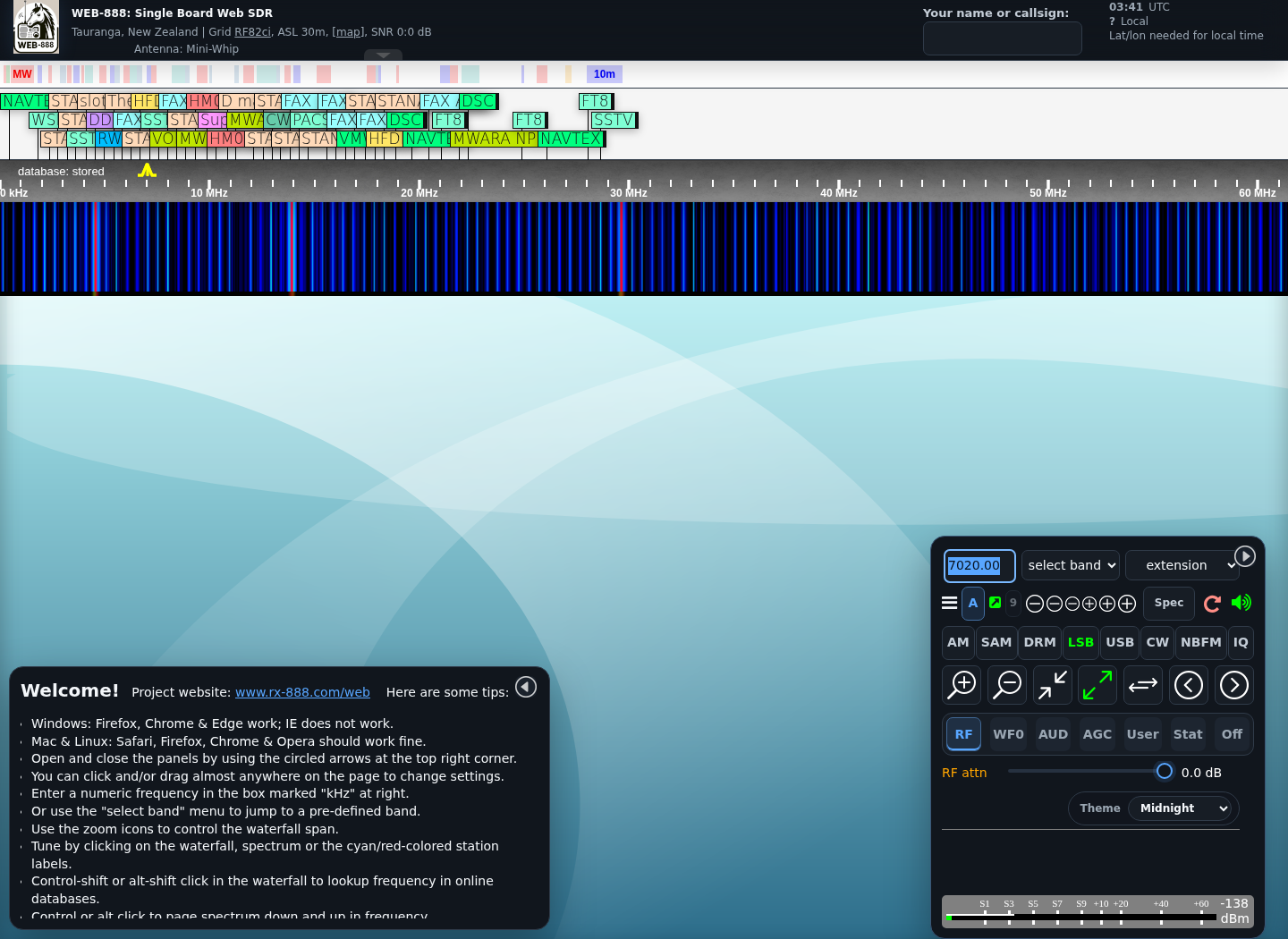
The layout adapts automatically to desktop, tablet, and phone widths. It does not use a separate "Lite" receiver mode. Use the Off tab only to hide the lower option panel. See Interface and Themes for themes, responsive layouts, and keyboard operation.
Selecting Listening Modes
The current receiver supports:
- AM / AMN - AM and narrow AM.
- USB / USN - upper sideband and narrow upper sideband.
- LSB / LSN - lower sideband and narrow lower sideband.
- CW / CWN - CW and narrow CW.
- NBFM / NNFM - narrow FM and narrower FM.
- IQ - stereo I/Q output.
- DRM - Digital Radio Mondiale; opens the DRM extension.
- SAM / SAU / SAL / SAS - synchronous AM, upper-sideband, lower-sideband, and stereo variants.
- QAM - quadrature AM.
Several buttons cycle through related modes when clicked repeatedly. A shift-click or middle-click selects that mode with its default passband.
Jump to Band
The Band menu moves the receiver to a predefined band and selects a useful initial zoom. Use it to move quickly between broadcast, amateur, utility, and other configured frequency ranges.
Enabling Extensions
Choose a decoder or utility from the Extension menu. For example, tune a DRM broadcast and select DRM to open the decoder. The nearby receiver controls provide IQ balance, mute, AGC, and recording.
Space Weather
Select Space Weather to display solar and geomagnetic conditions from NOAA Space Weather Prediction Center feeds.
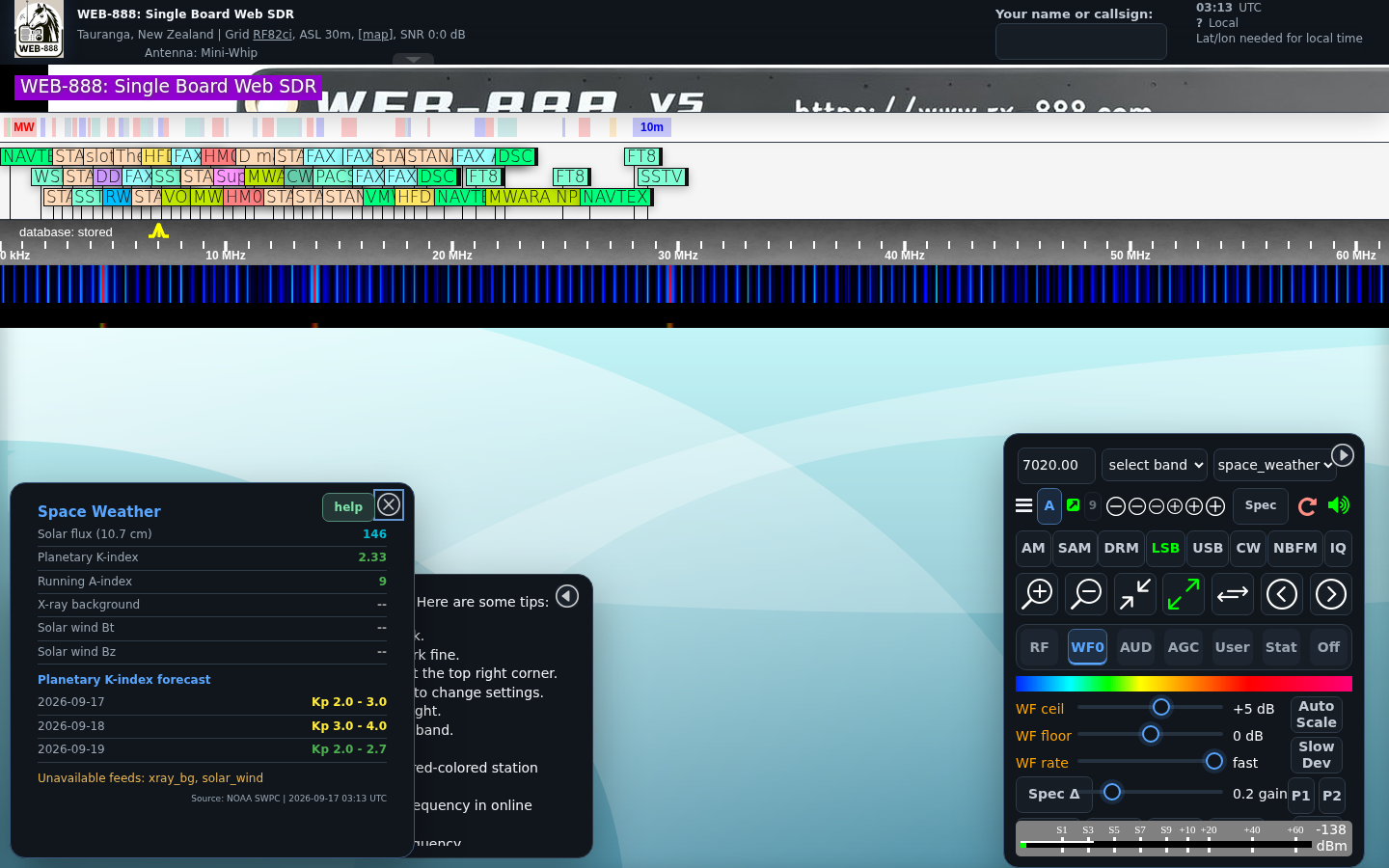
The panel shows 10.7 cm solar flux, planetary K-index and running A-index, GOES X-ray background class, solar-wind Bt and Bz, and a three-day planetary K-index forecast. An administrator can set the refresh interval from 10 to 180 minutes under Admin > Extensions > Space Weather.
DRM Program Guide Status
The DRM extension indicates whether the tuned service advertises Electronic Program Guide data.
Recording
Select the record button to start browser-side recording and select it again to stop. Keep the browser tab open until the recording has been completed and downloaded. While recording, the receiver prevents mode changes that would switch between mono and stereo/IQ audio.
Option Panel
The tabs below the receiver controls select:
- RF - RF attenuation and interface-theme controls.
- WF - waterfall and spectrum display controls.
- AUD - audio, noise reduction, squelch, and passband controls.
- AGC - automatic or manual gain controls.
- User - connected receiver users.
- Stat - receiver, network, and GPS status.
- Off - hide the option panel.
RF Controls
RF attn applies input attenuation in 0.5 dB steps. The theme controls select the current receiver appearance.
Waterfall Controls
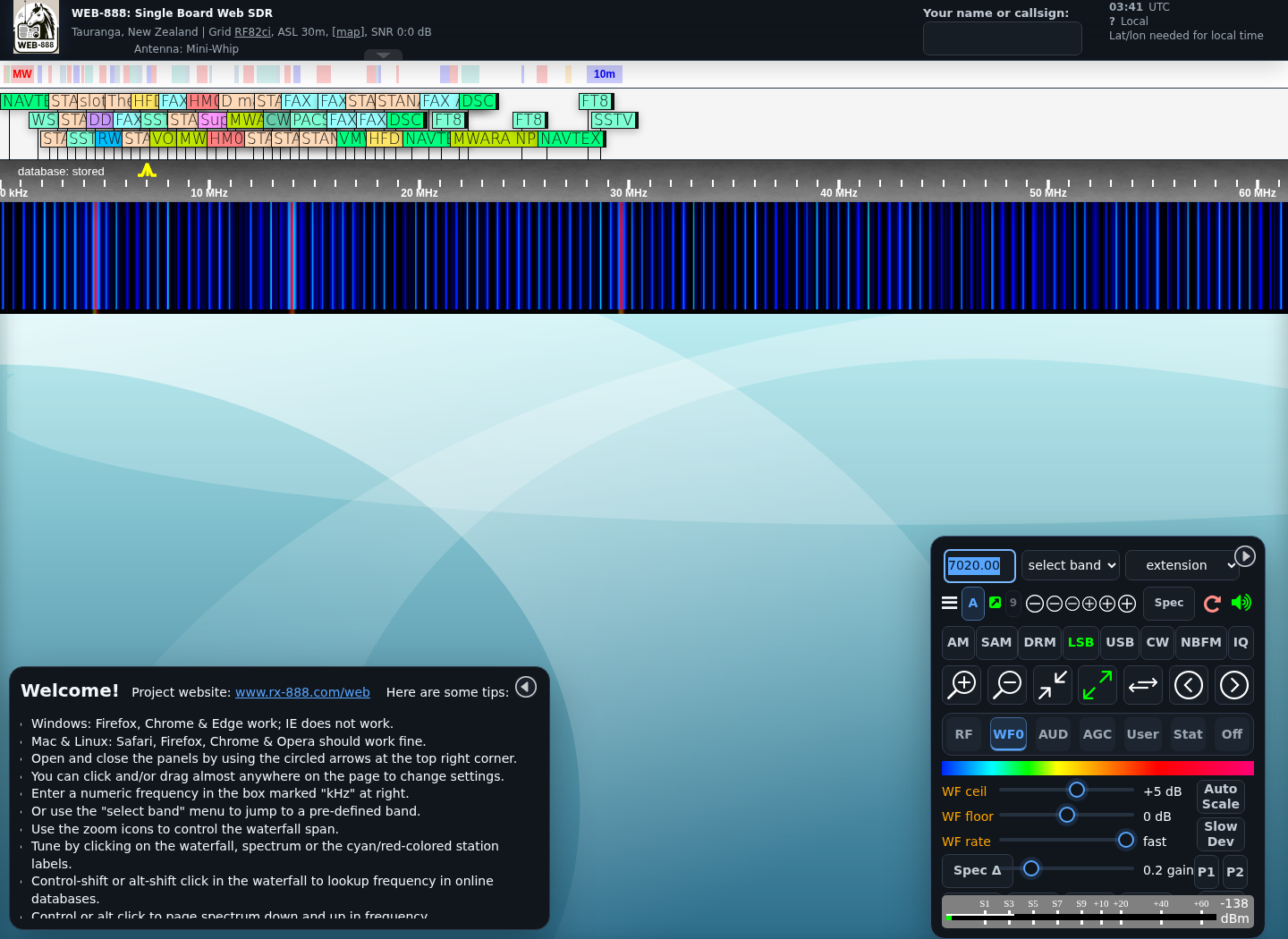
WF max/min or WF ceil/floor set the waterfall range, depending on whether automatic scaling is enabled. WF rate controls waterfall update speed. Spec Δ changes the displayed spectrum offset.
Auto Scale derives the waterfall range automatically. Slow Dev reduces display load for devices that cannot keep up with normal rendering. P1 and P2 provide two independent spectrum peak traces with off, on, and hold states.
The lower selectors choose the color map, FFT aperture, waterfall filter, and spectrum filter. More opens the extended waterfall settings.
Audio Controls
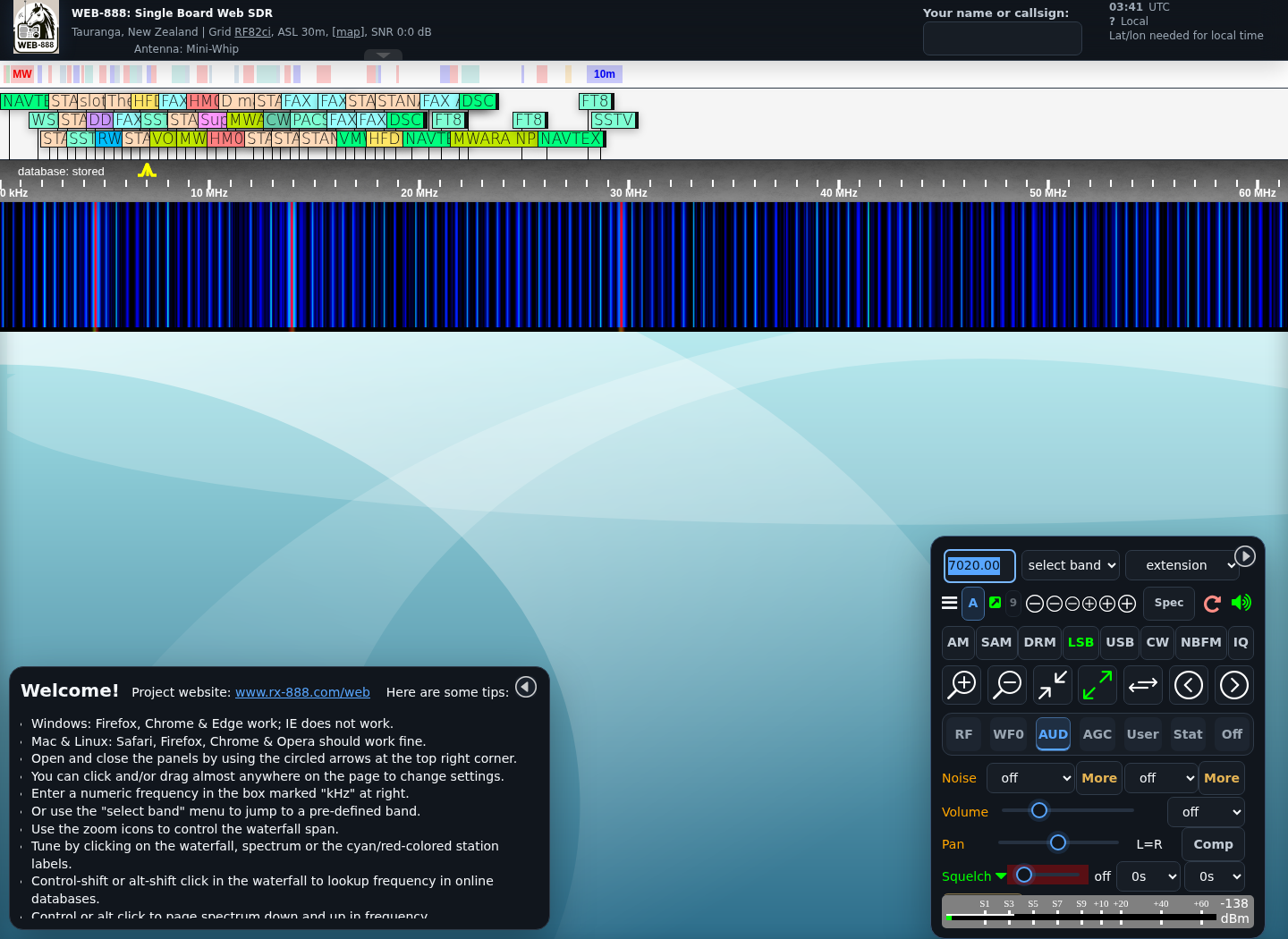
The Audio tab provides noise blanker and noise-reduction algorithms, volume, mode-dependent de-emphasis, compression, pan where applicable, and squelch. For non-FM modes, squelch includes configurable pre-record and tail values.
PB default restores the mode's standard passband. PB low, PB high, PB center, and PB width provide precise passband adjustment. Additional controls appear for modes such as SAM and NBFM.
AGC Controls
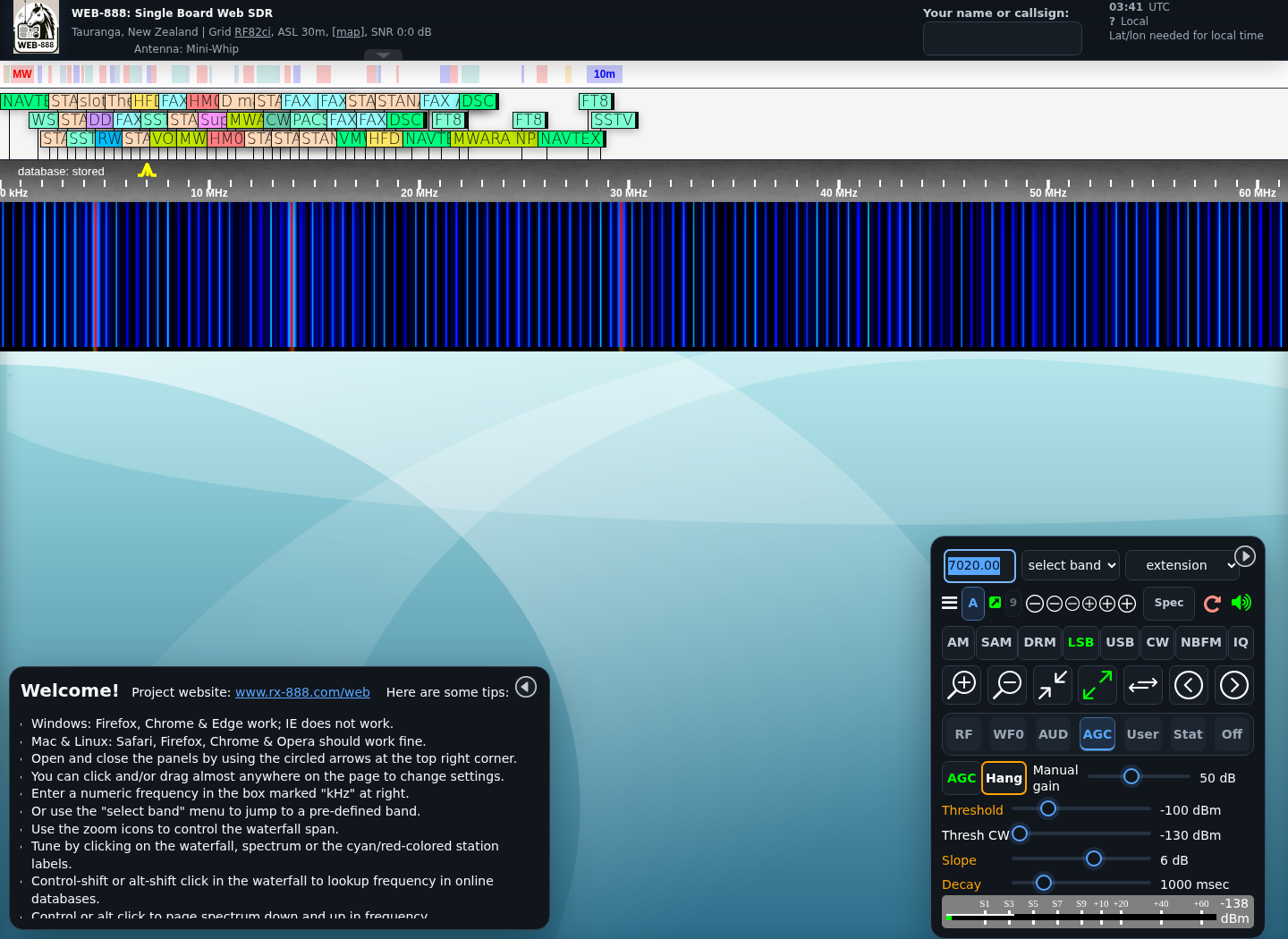
AGC enables automatic gain control. With AGC disabled, Manual gain sets receiver gain directly. Hang, Threshold, Thresh CW, Slope, and Decay control AGC response; CW uses its separate threshold value.
Mobile Touch Gestures
- Tap the waterfall to tune.
- Touch and hold for about three-quarters of a second, then drag to move the waterfall.
- Move two fingers horizontally together to tune.
- Pinch with two fingers to zoom.
The responsive layout automatically rearranges the receiver controls for the available screen width.